VLPremier Pro — Feature Guide
A professional video editor for macOS, built for narrated long-form videos and Shorts.
VLPremier Pro is a native macOS video editor from VL Video Pro (webpronc.com). It is designed for YouTube creators and documentary and faceless-channel editors who cut long narrated videos and turn them into Shorts. The layout, tools and keyboard shortcuts will feel familiar to Premiere Pro editors, and it opens Premiere Pro projects. Transcription, captions, voiceover, dubbing and AI-assisted editing are part of the app and run on your Mac.
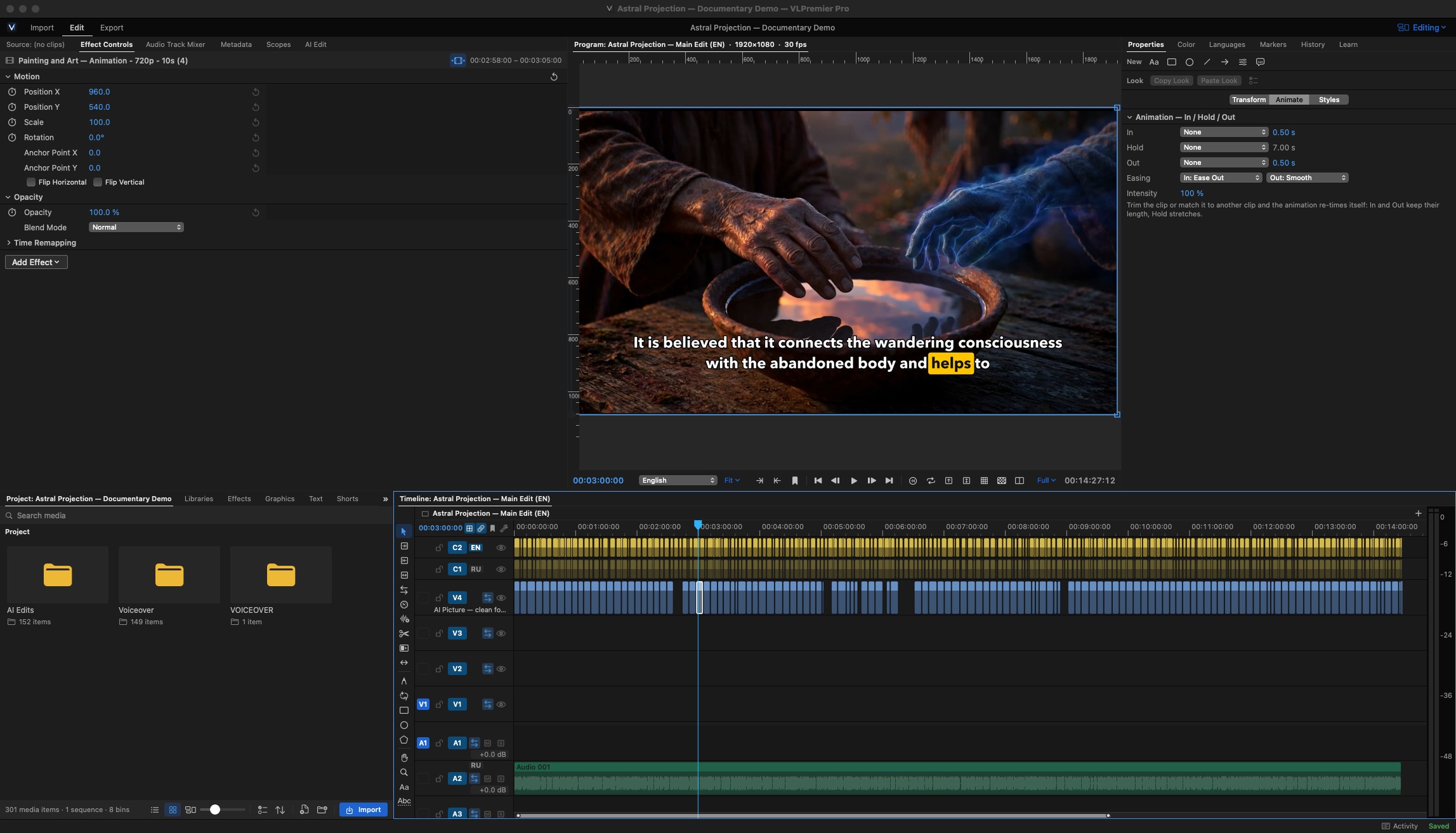
The Editing workspace. The demo project in every screenshot is a 14-minute documentary narrated in Russian, with an English caption track and an English voice track made inside the app.
Why VLPremier Pro
- Familiar from the first cut. The tools, workspaces and default shortcuts follow Premiere Pro, so you can keep the habits you already have.
- Bring your projects with you. It opens Premiere Pro projects and XML with their sequences, bins, nests, markers and keyframes, and exports XML, AAF, EDL and FCPXML.
- Built for narration. Transcribe the voiceover, edit by deleting text, remove silences and retakes, and generate captions in a few clicks.
- Shorts from your long video. The app finds strong moments in a long video, reframes them vertically, adds animated captions and exports them in a batch.
- Your own voice, in other languages. The built-in Voiceover Studio narrates scripts with cloned voices and dubs videos into other languages, timed to the original.
- AI that runs on your Mac. AI Edit runs on a built-in AI engine on your Mac, with no extra software and no cloud account needed. Online services are optional.
- Made for long films. Timelines with thousands of clips stay responsive, and autosave and background saving protect your work.
- Signed and notarized. The app is signed with a Developer ID and notarized by Apple, so macOS opens it without warnings.
Getting started
- Install. Open the VLPremier Pro DMG and drag the app into your Applications folder. The app and the DMG are notarized by Apple, so macOS opens them without a security warning.
- First launch. Open VLPremier Pro from Applications. The PRO edition opens its Licence window first.
- Activate your licence. Paste the licence key from your purchase email into the Licence window and activate it. One licence covers one Mac. To switch computers, open Settings › Licence and choose Move to another Mac, then activate on the new Mac. If you are offline, the app keeps working for a grace period.
- Let the set-up finish. On a new Mac, a bar at the top of the window counts down 10 seconds and then installs Voiceover Studio, speech recognition and the AI model for the built-in AI engine. The model is chosen to fit your Mac's memory. The bar shows the download size and progress, and Stop pauses it. You can resume it later in Settings › AI Components. You can edit while it runs.
- Open or start a project. Start a new project from the Home screen, or choose File › Open Premiere Pro Project or XML… to bring in an existing edit. To add a Premiere project, XML or caption file to the project you have open, use File › Import Premiere Pro Project, XML or Captions… (⇧⌘I).
Editing workspace & timeline
What it is: The full editing workspace: Source and Program monitors, the Project panel and a multi-track timeline. It works the way a Premiere Pro editor expects.
Key functions
- All 18 Premiere Pro timeline tools on the same keys: Selection (V), Track Select (A), Ripple (B), Rolling (N), Rate Stretch (R), Razor (C), Slip (Y), Slide (U), Pen (P), Hand, Zoom, Type and Vertical Type, the shape tools and the Remix tool. An Object Mask tool is added.
- Insert, Overwrite, Lift, Extract, Ripple Delete, Match Frame, Add Edit, three-point editing, trim mode with J K L trimming
- Markers, ranged markers and chapter markers; editable in the Markers panel
- Live nested sequences that update when you edit inside them
- Multi-camera editing: New Multi-Camera Sequence, sync by sound, cut angles with keys 1–9
- Speed and duration, speed keyframes, frame holds, Morph Cut, Scene Edit Detection
- Text-based editing in Text › Transcript: delete words or sentences to cut them from the video
- Keyboard Shortcuts window, with import of your Premiere Pro shortcut file (.kys)
Why it helps: You keep your editing habits and work at full speed from the first session.
How to use it
- Import media into the Project panel and double-click a clip to open it in the Source Monitor.
- Set In and Out, then press , (Insert) or . (Overwrite).
- Trim with Ripple (B), Rolling (N), Slip (Y) or Slide (U), and cut with the Razor (C).
- Press M to add markers, and select clips and choose Nest… to group them.
Effects & Effect Controls
What it is: A large library of video and audio effects and transitions, controlled and keyframed in the Effect Controls panel.
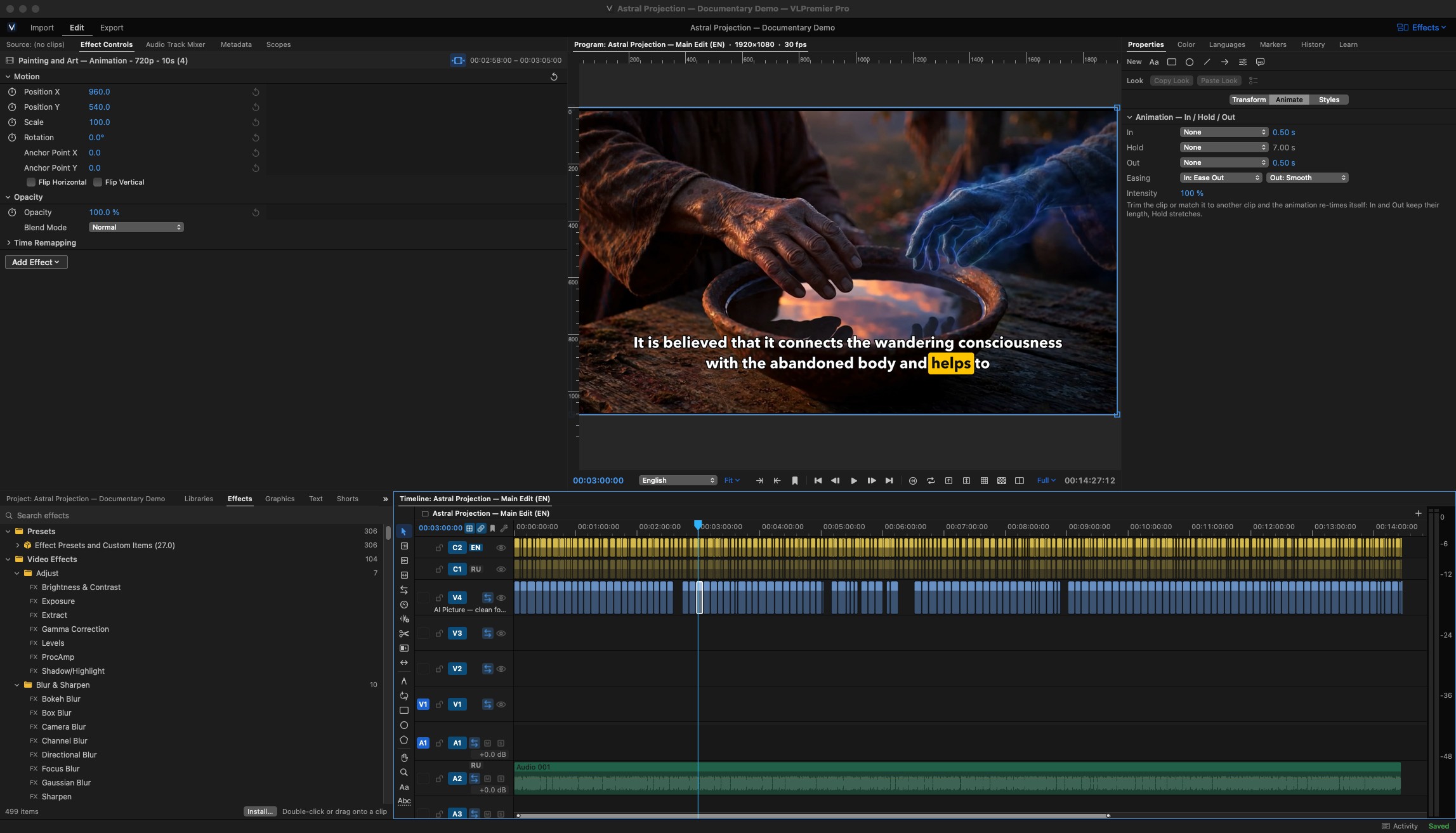
The Effects workspace: browse the library at the lower left and adjust the selected clip in Effect Controls.
Key functions
- More than 100 video effects and 56 video transitions, many under their Premiere Pro names (Stabilizer, Ultra Key, Track Matte Key, Gaussian Blur, Transform, Crop and more)
- Every Premiere Pro Generate effect, including Lightning, Write-on, Cell Pattern, Paint Bucket, Circle, Ellipse, Eyedropper Fill, 4-Color Gradient, Grid and Lens Flare
- Keyframes with Bezier curves, value and velocity graphs, and a motion path drawn in the Program Monitor
- Effect masks (ellipse, rectangle, free-drawn) with feather, invert and tracking
- Right-click an effect to Copy, Paste with keyframes, Reset or Save as Preset…
- Searchable Effects panel with Favorites; drag an effect onto a clip, or select it and press Return
- Transitions including dissolves, wipes, slides, iris, page peel, 3D motion and stylized looks such as Film Burn, VHS Damage and Chroma Leak
Why it helps: Effects you already know from Premiere Pro, including the Generate effects documentary editors use for map routes and callouts.
How to use it
- Open the Effects panel and search for an effect, for example "Write-on".
- Drag it onto a clip on the timeline.
- Select the clip and adjust the settings in Effect Controls.
- Click the stopwatch next to a setting to add keyframes, then move the playhead and change the value.
Color
What it is: A colour grading workspace built around Lumetri-style sections, scopes and LUTs.
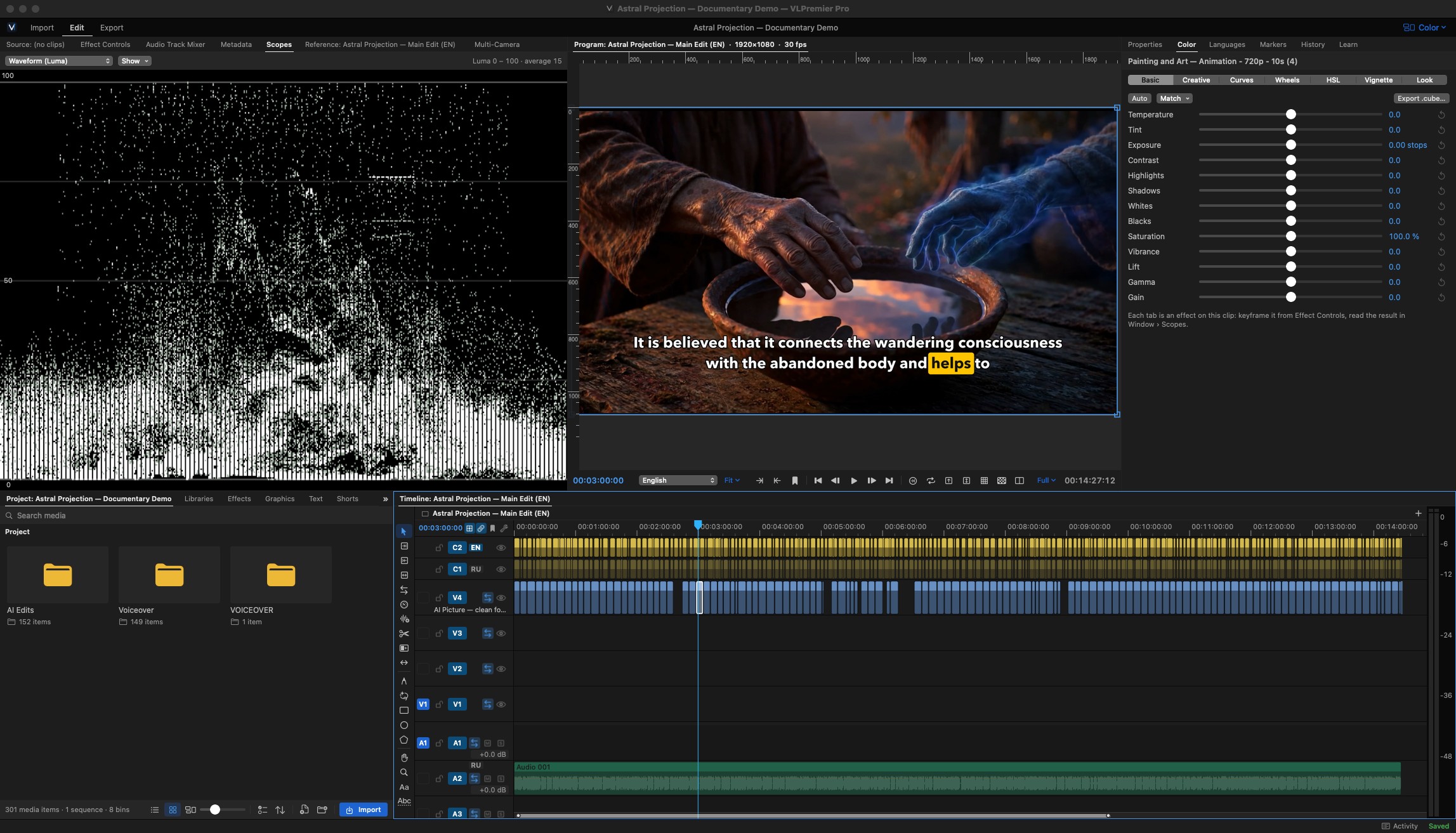
The Color workspace: a Luma waveform beside the picture and the Basic grading controls at the right.
Key functions
- Effects › Color Correction › Lumetri Color adds Basic Correction, Creative, Curves, Color Wheels and HSL Secondary in one step
- Color panel tabs: Basic, Curves (RGB and Hue Saturation curves), Wheels, HSL and Look
- Auto grade and Match › To Previous / Next Clip
- Scopes: Waveform (Luma, RGB, YC), RGB Parade, Vectorscope and Histogram, shown one at a time or side by side
.cubeLUTs and a Looks menu. File › Add-ons › Install Premiere's Lumetri Looks copies the readable looks from an installed Premiere Pro- Export .cube… bakes a clip's grade into a LUT
- Window › Reference Monitor holds a reference frame of its own, or follows the Program Monitor
- iPhone HDR (HLG), HDR10 (PQ) and Apple Log footage converted to Rec. 709 for editing
Why it helps: Shots match faster when you grade against a fixed reference frame with accurate scopes.
How to use it
- Switch to Window › Workspaces › Color.
- Select a clip and use the Color panel tabs, or apply Lumetri Color from the Effects panel.
- Open Window › Reference Monitor, set it to the shot you want to match and turn off Gang to Program.
- Check the result in Scopes, then use Match or adjust the Wheels.
Audio
What it is: Mixing, repair and music tools for narration-led videos, including the Essential Sound panel, track and clip mixers, and plug-in support.
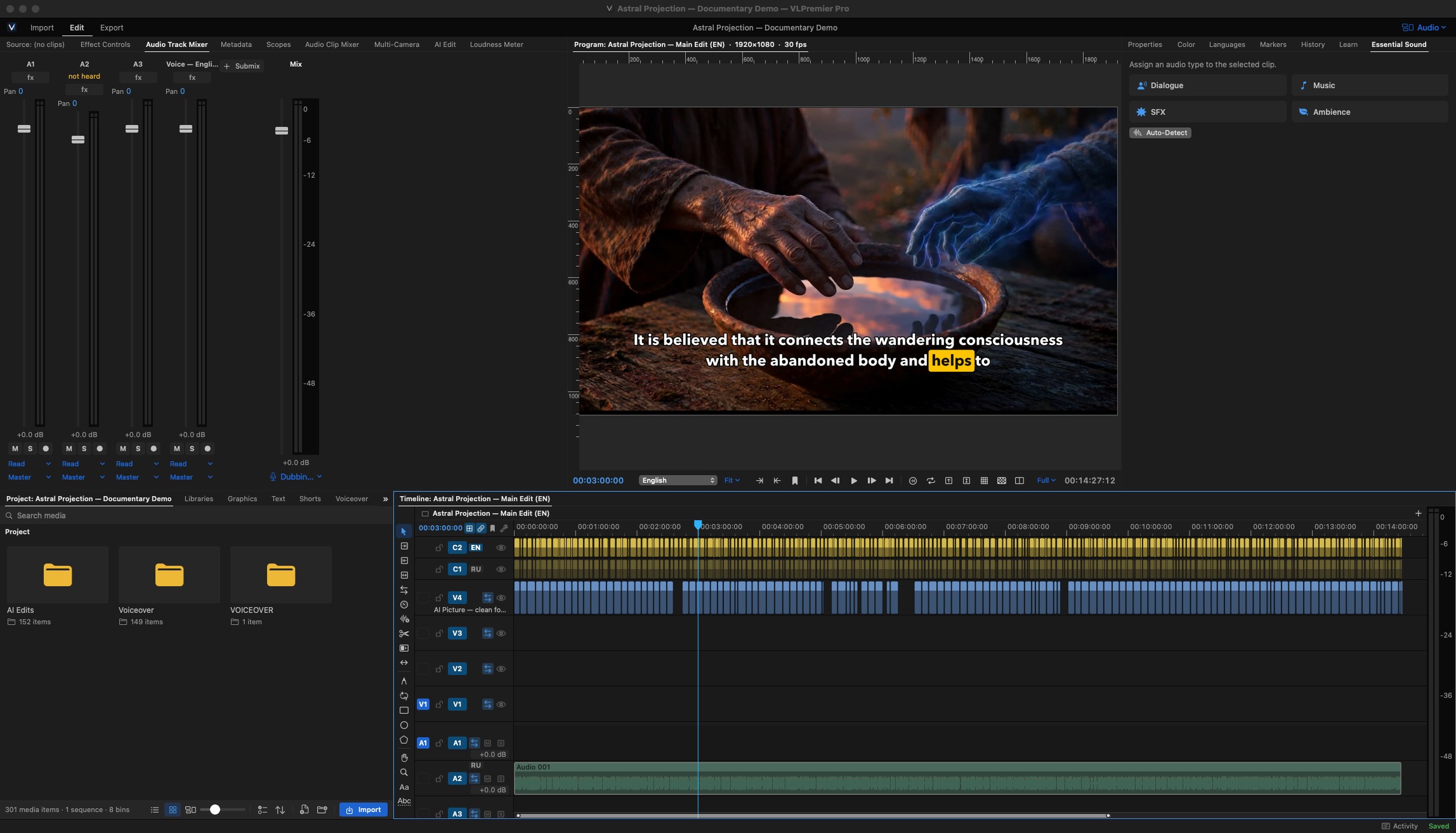
The Audio workspace: the Audio Track Mixer at the upper left and Essential Sound (Dialogue, Music, SFX, Ambience) at the right.
Key functions
- Essential Sound: Auto-Detect (Dialogue, Music, SFX, Ambience), Dialogue repair, Enhance Speech, ducking and Voice Carve
- Audio Track Mixer with sends, submixes and automation (Read, Write, Latch, Touch). Audio Clip Mixer for per-clip levels
- Over 30 audio effects, including DeNoise, DeReverb, Automatic Click Remover, Vocal Enhancer, EQ, compressors, Studio Reverb and delays
- Audio Units and VST3 plug-ins, each with its own editor window
- Remix: fits a music track to any length. Joins land on bar lines with a one-beat crossfade, and the song keeps its own ending. Exact Length is available
- Remove Silences (AI Edit › Quick Edits): measures the room tone, keeps natural breathing space before and after words, and adds short fades so cuts don't click
- Loudness Meter, Normalize Loudness (−14 / −16 / −23 LUFS) and loudness targets on export
Why it helps: A clean, evenly levelled narration over well-fitted music, without leaving the editor.
How to use it
- Select the narration and choose Essential Sound › Dialogue, then use Repair or Enhance Speech.
- Use the Remix tool, or Clip › Remix to Duration…, to fit the music bed to the video.
- Run AI Edit › Quick Edits › Remove Silences and review the cuts before you apply them.
- Check the levels in the Loudness Meter and normalize to your platform's target.
Captions & Text
What it is: On-device transcription with word timing, animated caption styles, translation and caption file exchange.
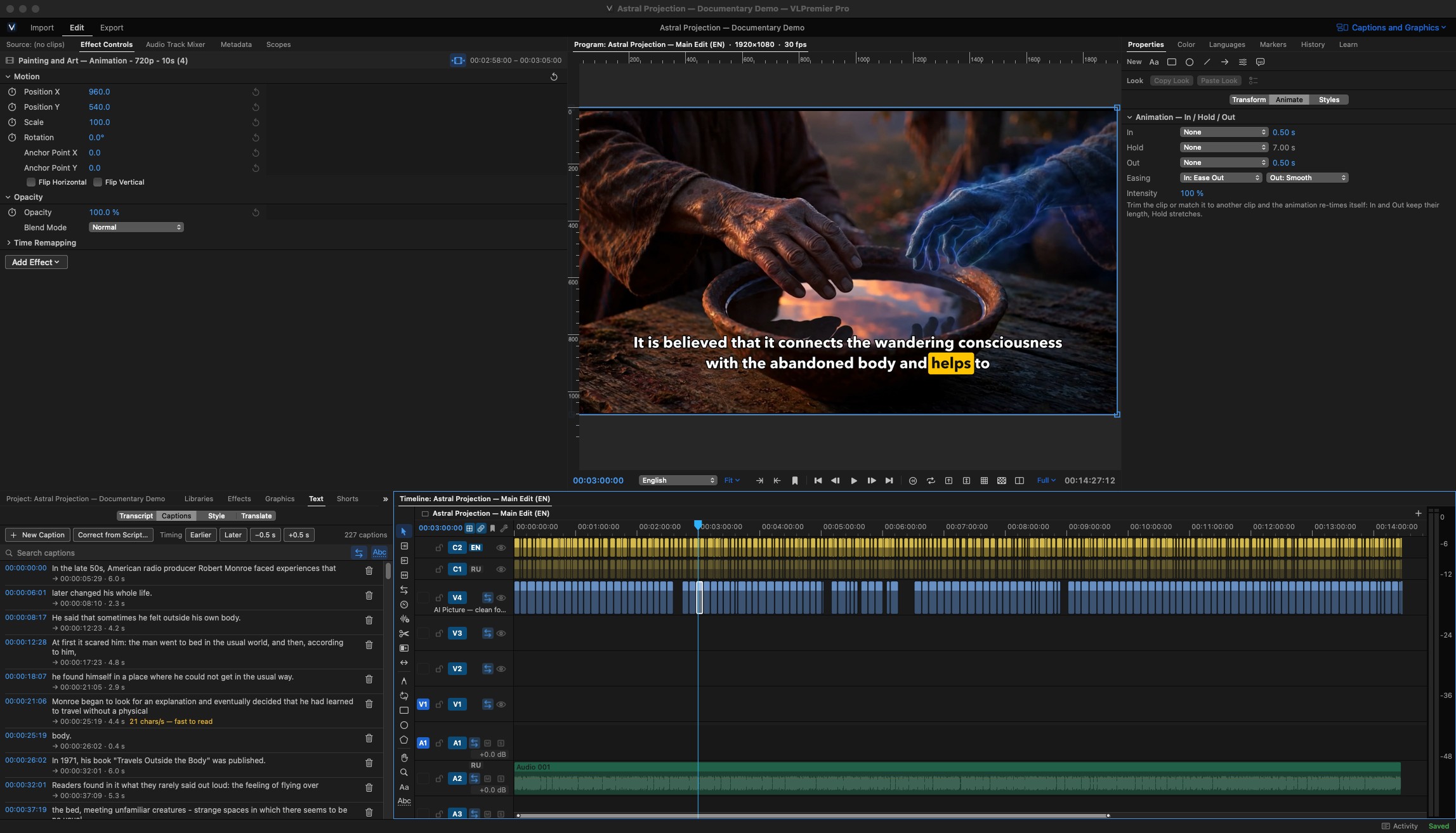
The Text panel's Captions tab: every caption with its timing, ready to edit, search or restyle.
Key functions
- Transcribe the sequence on your Mac with word-level timing, then press Captions from Transcript
- Built-in animated caption styles with word-by-word highlighting, including Pill Highlight, Soft Pill Karaoke and Neon Glow. Save your own looks under My Presets
- Caption rules: characters per line, minimum duration and gaps
- Translate Captions… creates a caption track in another language, using Apple's on-device translation or an AI service
- Spell check per caption language, and Find and Replace
- Correct from Script: paste your script or open it as .txt, .md, .rtf or .docx, and the app fixes misheard words in the captions, the transcript or an SRT file. Every fix is listed for review, the timings stay as they are, and one Undo reverses it
- Import and export SRT and VTT. Captions can be burned in, saved as a separate file, or embedded in the video file
- Right-to-left captions (Arabic, Hebrew)
Why it helps: Accurate, readable, animated captions in several languages from a single transcript.
How to use it
- Open Text › Transcript and transcribe the sequence.
- Press Captions from Transcript, then choose a caption style.
- Use Correct from Script if you have the narration script.
- Choose Translate Captions… to add another language.
Graphics & titles
What it is: Titles, animated templates and motion graphics, edited in the Properties and Graphics panels.
Key functions
- Text Studio: 210 animated templates in 11 families (step flows, cards, lists, counters, charts, kinetic text, callouts, timelines and more), each in 12 themes
- Motion Studio: 91 motion presets in 14 styles, including callouts, counters and spotlights, some with matching sound effects
- Title styling: gradient fill, several strokes, faux bold and italic, small caps, underline. Linked master text styles update every title at once
- Multi-layer graphics with text, shapes and pictures, plus Mask with Text / Mask with Shape
- Suggest Graphics: proposes graphics placed where the narration mentions lists, steps and key terms
- MOGRT templates: those made in Premiere Pro become editable titles. Those made in After Effects render through an installed After Effects, which also edits their controls
- Credit rolls, Replace Fonts in Projects…, and Upgrade Caption to Graphic
Why it helps: Clear explainer graphics that keep up with the narration, without building each one by hand.
How to use it
- Open the Graphics panel and browse the Text Studio or Motion Studio families.
- Drag a template onto the timeline.
- Select it and edit the text, colours and motion in Properties.
- To do this automatically, choose Suggest Graphics in AI Edit and review the suggestions.
Shorts
What it is: A Shorts workflow that finds strong clips in a long video and delivers finished vertical videos.
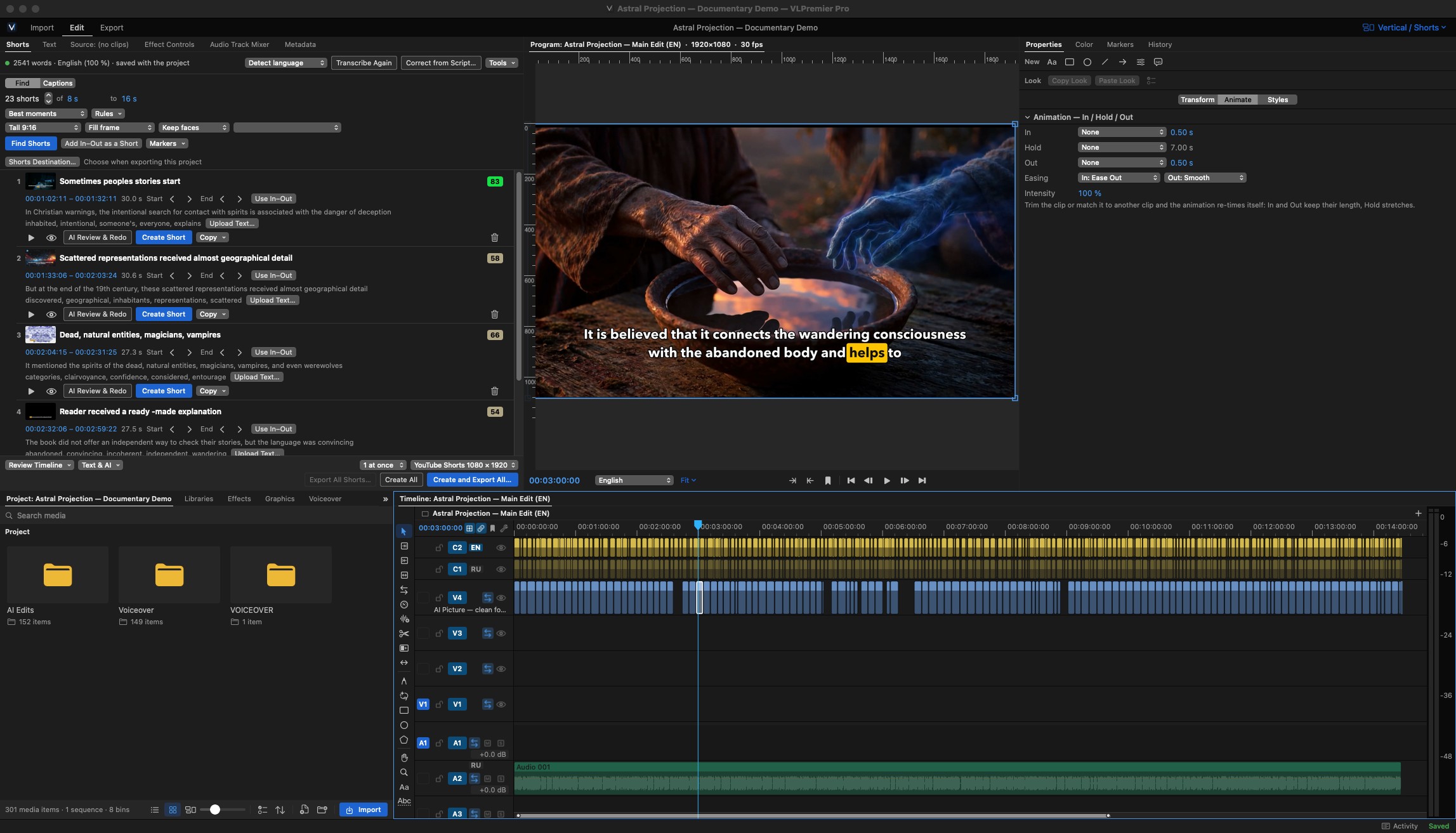
Find Shorts in the Vertical / Shorts workspace: each candidate has a score, a title, its text and a Create Short button.
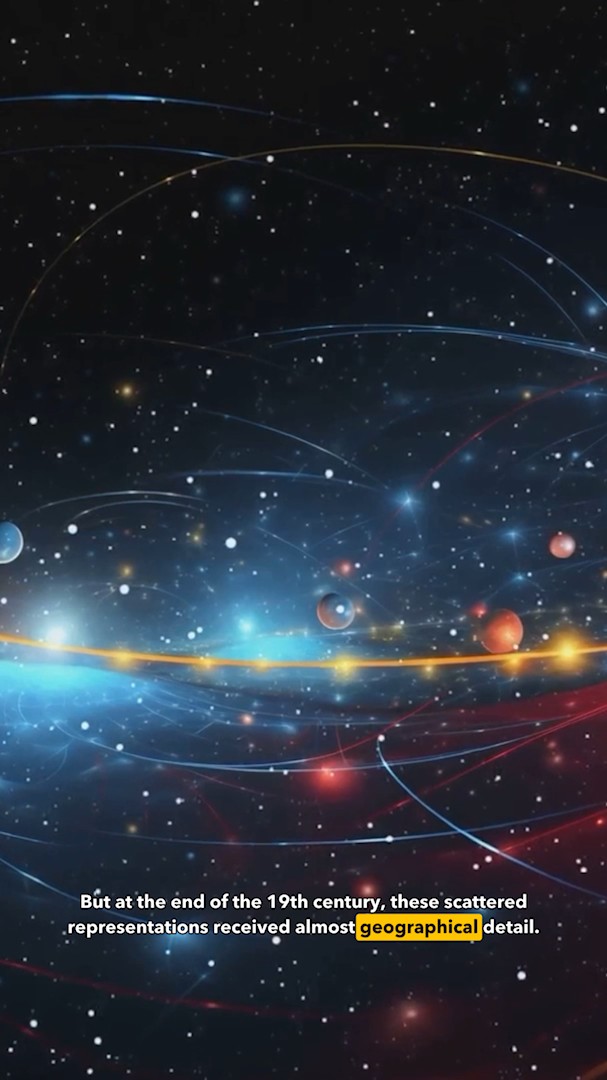
A vertical short made by Create Short, with word-by-word highlighted captions.
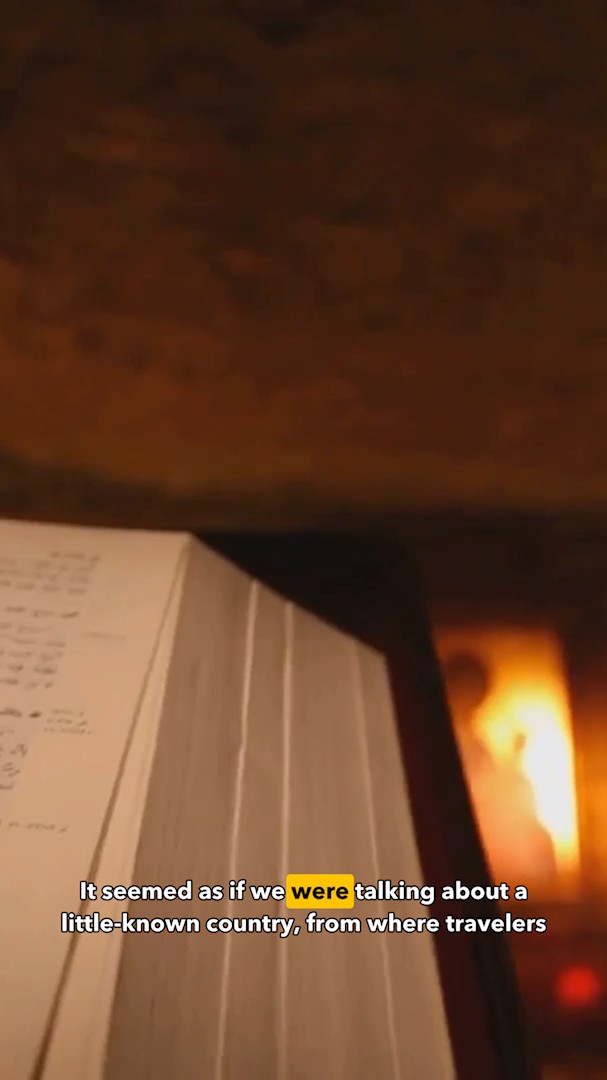
Another frame of the same short: the framing and captions follow the narration.
Key functions
- Find Shorts scores passages for hook, clarity, payoff and novelty. Clips always contain whole sentences (English and Russian)
- Create Short in 9:16, 1:1 or 4:5, with face-aware framing. Sequence › Auto Reframe Sequence… makes the framing follow the action
- Animated captions in your chosen style, with a preview in the real shape
- Title, hook, description, hashtags and keywords for each short. Save Shorts Package writes JSON and CSV files for scheduling tools
- View › Shorts Safe Zones for YouTube Shorts, TikTok and Instagram Reels
- Create and Export All… queues every short. Batch: Shorts for Several Videos… handles several videos in one run
- A Minimum Score rule, a still image for each short in the list, and automatic filing into a "Shorts Sequences" bin
Why it helps: One long video becomes a week of Shorts without re-editing each one by hand.
How to use it
- Switch to Window › Workspaces › Vertical / Shorts and transcribe the sequence.
- In the Shorts panel, press Find Shorts.
- Preview the results, adjust the start and end by words, and create the ones you want.
- Press Create and Export All….
Voiceover Studio
What it is: A narration studio built into the editor that turns a script into finished voiceover, with cloned voices and dubbing into other languages.
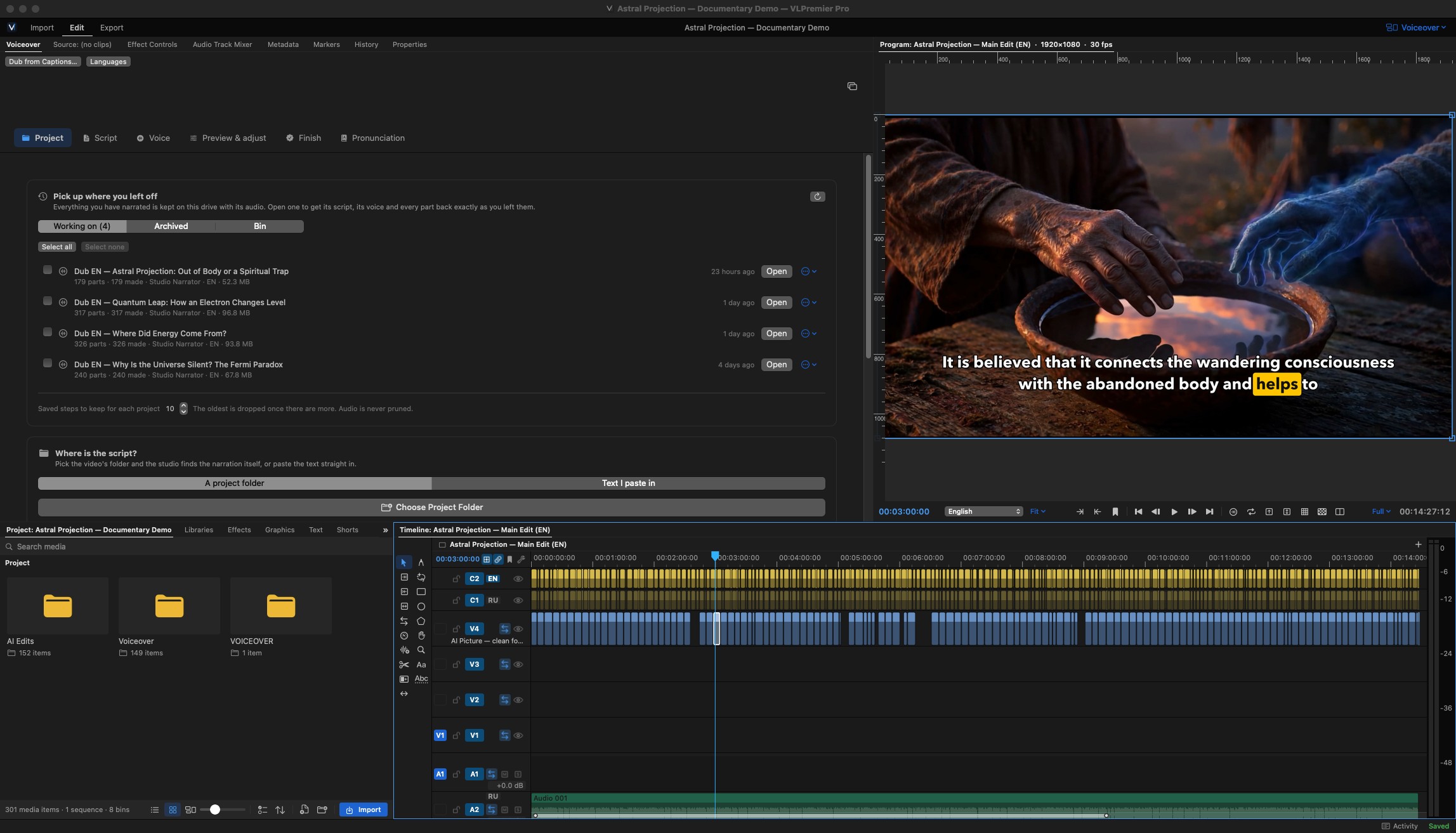
Voiceover Studio inside the editor: Project, Script, Voice, Preview & adjust and Finish steps, with your narration projects listed.
Key functions
- Paste or open a script. The studio divides it into parts, renders the narration and places it at the playhead with a marker for each part
- Narration with cloned voices made from your own recordings (Add Voice…, New Version from Recording…). A macOS system voice is available without any install
- Analyse & Improve for scripts, using the built-in AI engine
- Pronunciation rules, stress marks and Insert Pause
- Dub from Captions…: a voice in another language fitted phrase by phrase to the original timing, with a review list and a listening check
- Languages panel: dub selected phrases, listen to new takes, then replace them on the track
- Record voiceover directly from the mixer, with a choice of microphone
Why it helps: Narration and translated versions of a video, all produced inside the edit.
How to use it
- Switch to Window › Workspaces › Voiceover.
- Create a project, paste your script and choose a voice.
- Preview and adjust the parts, then finish the render. It appears on your timeline.
- To make another language version, translate the captions and choose Dub from Captions….
AI Edit
What it is: AI-assisted editing for narrated videos. It runs on the built-in AI engine on your Mac, and online AI services are optional.
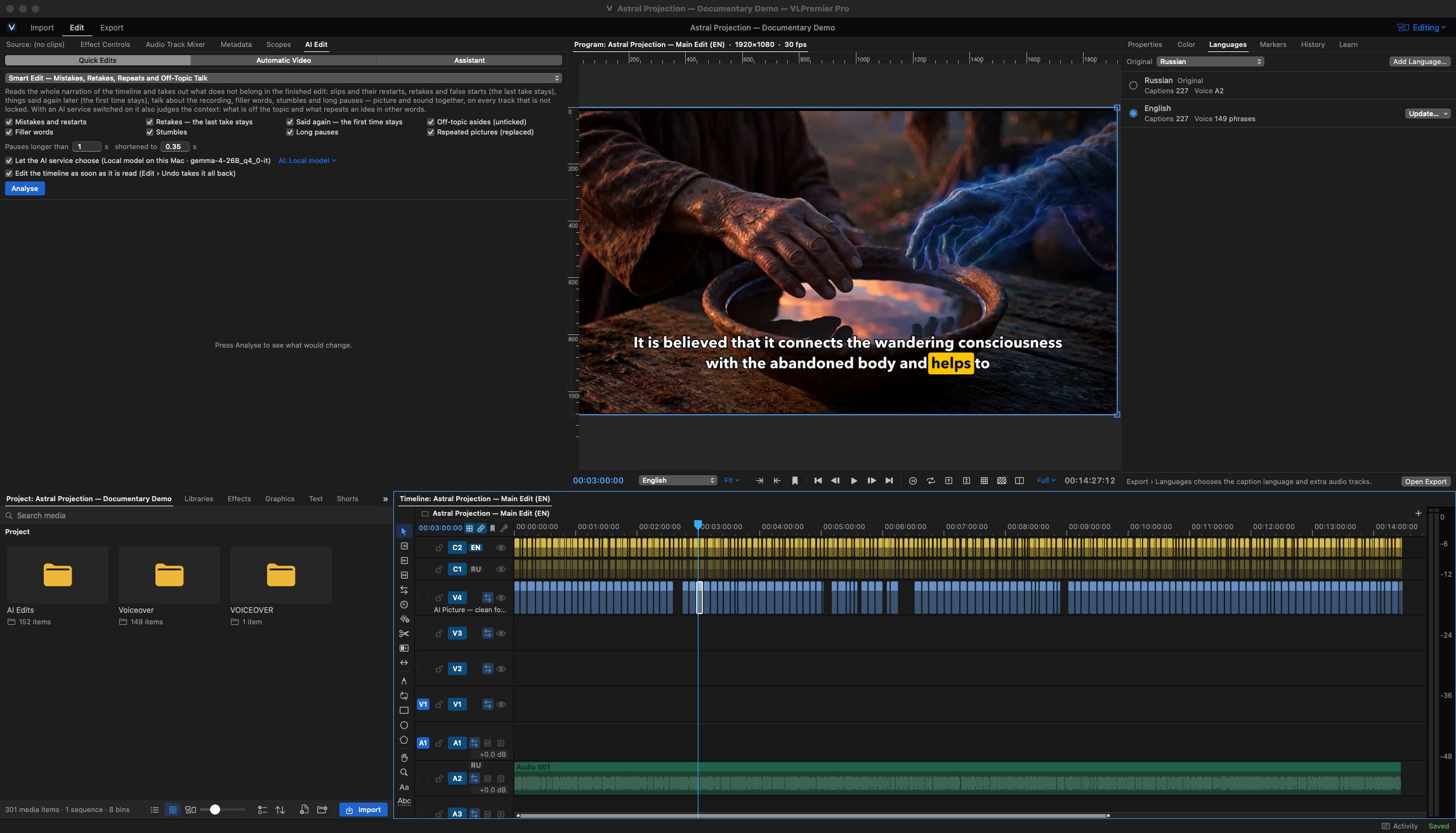
AI Edit › Quick Edits: Smart Edit finds mistakes, retakes, filler words and long pauses, and shows every change before it is applied.
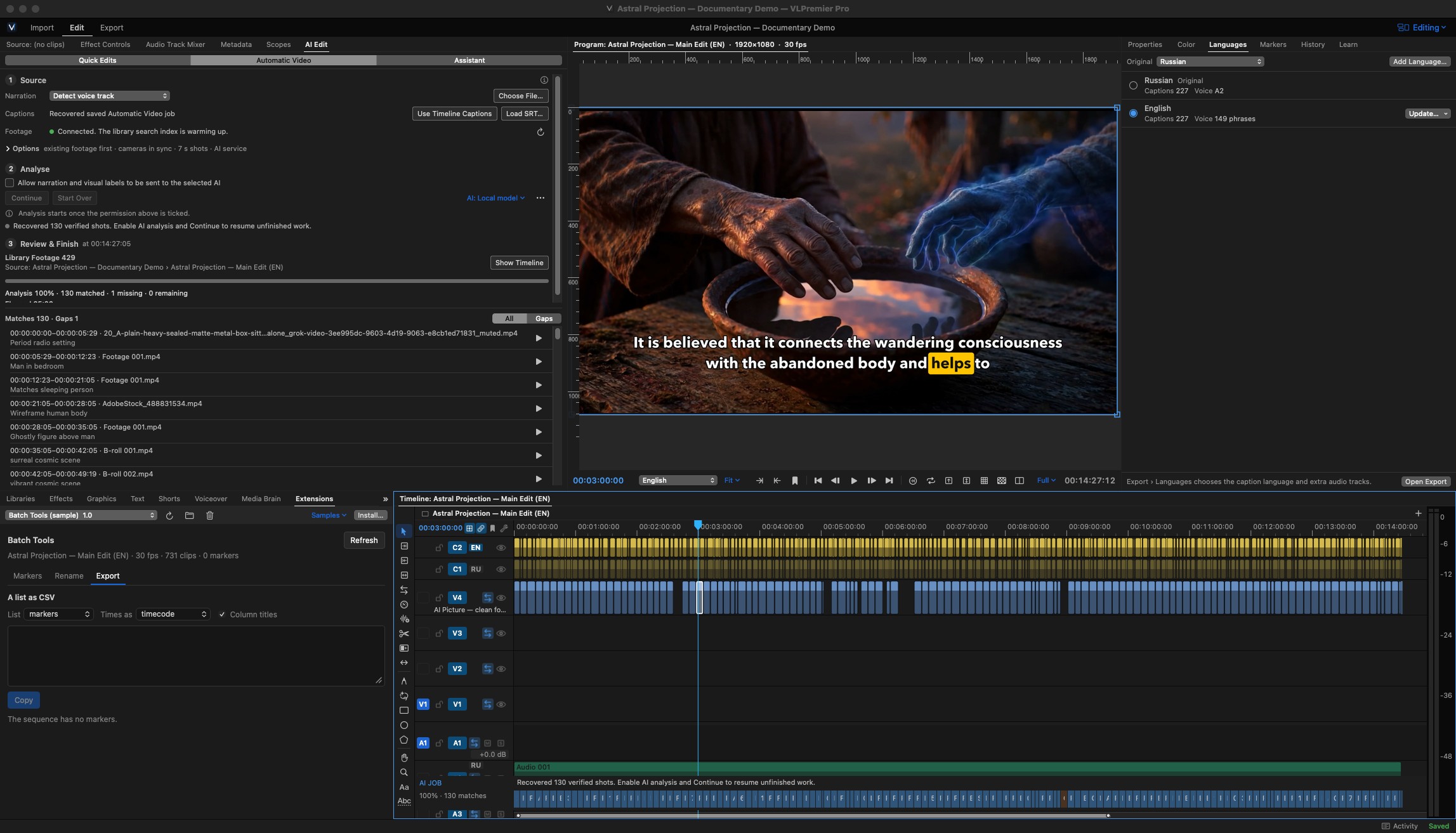
AI Edit › Automatic Video: 130 shots matched to the narration, each with its time range and a short description.
Key functions
- Automatic Video: builds a B-roll timeline from the narration, choosing shots for each line from your media library through the Media Brain panel. You can Stop, Continue or Start Over. Continue fills only the gaps and keeps your own adjustments
- Quick Edits: Remove Silences, Remove Filler Words and Repeated Takes, Split at Scene Cuts, Suggest Graphics from the Narration, Punch-ins, Suggest B-roll over the Narration
- Smart Edit: removes mistakes, retakes, repeats and off-topic talk, and places every cut in real silence
- Assistant: describe an edit in plain language. It shows its plan before running, and Undo AI Edit reverses it
- Every result appears in a review list first, and each edit is a single undo step
- An AI: menu in the panel switches between the built-in engine, a local server or an online service with your own key
Why it helps: It handles the first assembly and the clean-up so you can spend your time on story and pacing.
How to use it
- Open the AI Edit panel.
- Pick a Quick Edit, or open Automatic Video for a narration sequence.
- Review the proposed changes and untick any you don't want.
- Press Apply. A single Undo reverses the whole edit.
Object Mask & tracking
What it is: Select a subject with a click, track it through the shot, and limit effects or colour to it.
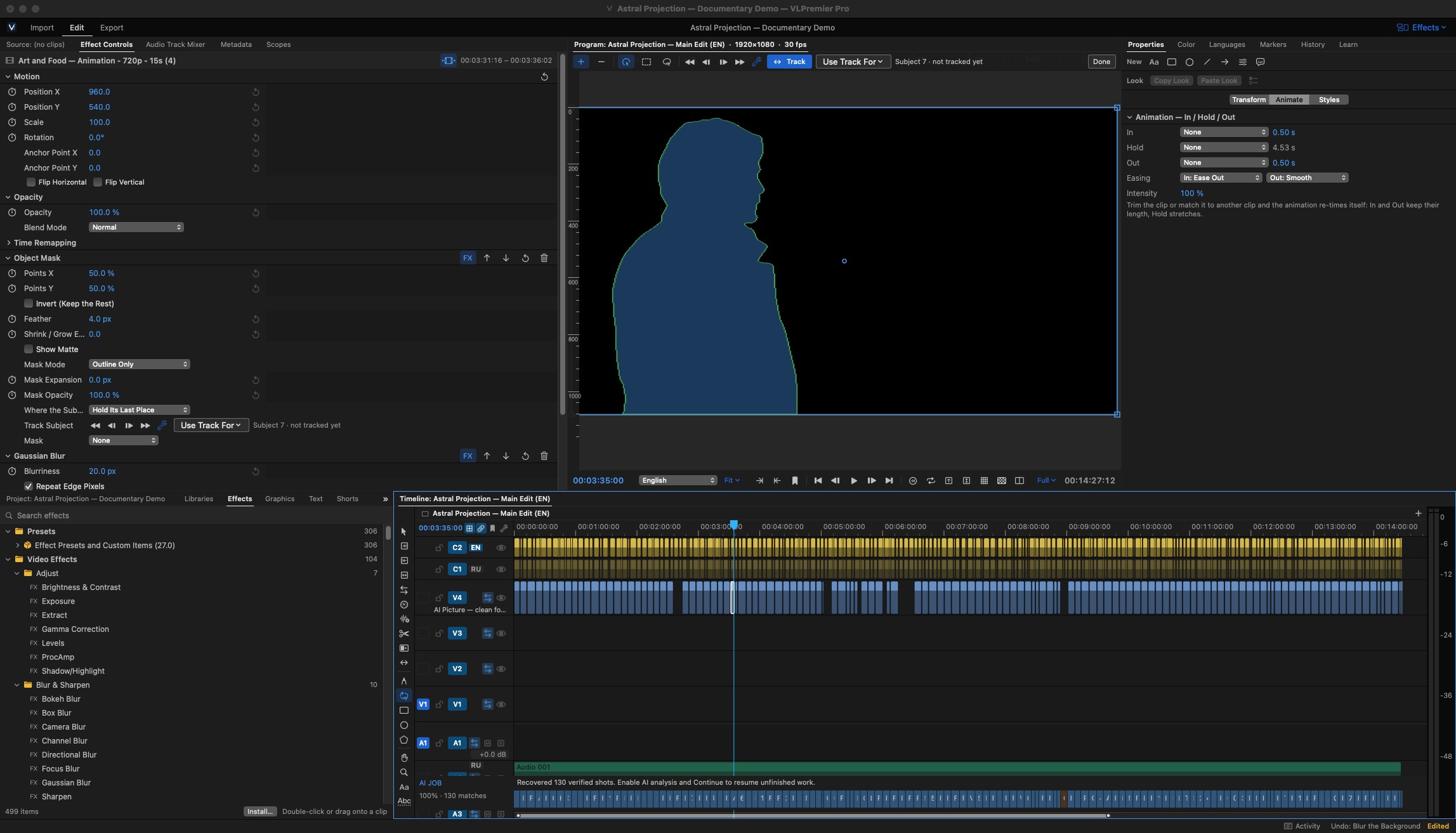
One click on the man selects him; Use Track For › Blur the Background blurs everything else.
Key functions
- Object Mask tool (Tools panel, after the Pen): hover to outline an object, click to select it, add or subtract areas. Click, Rectangle and Lasso modes
- Track the subject, with Faster or Better Quality. Tracking picks the subject up again after it is lost
- Use Track For: Keep in Frame, Pin Graphic, Blur, Mosaic, Spotlight, Cut Out, Color the Subject, Color the Background, Blur the Background
- Effect Controls › Mask › Subject limits any effect to the subject, or with Invert to everything else
- Mask Expansion, Mask Opacity, and Where the Subject Is Lost (hold its last place, hide, or show the whole clip)
- Also: Remove Background, Blur Faces, Track a Spot, and planar tracking with Corner Pin
Why it helps: Subject-only grades, background blur and graphics pinned to an object, without frame-by-frame masking.
How to use it
- Select the Object Mask tool and click the subject in the Program Monitor.
- Press Track and let the tracking window finish.
- Choose a use, for example Blur the Background.
- Fine-tune the edge with Mask Expansion, or subtract stray areas with the Lasso.
Subject detection runs on your Mac. Detection is automatic, so complex scenes may need a manual correction with the Lasso.
Import & Interchange
What it is: Moves projects and assets between VLPremier Pro and other professional applications.
Key functions
- Premiere Pro
.prprojand XML import: choose the sequences you need, and bring in bins, nests, markers, transitions, keyframes, titles, shapes, blend modes and labels. Lumetri grades come in as starting values. Missing media is searched for automatically - Premiere Pro XML export, opened back in Premiere Pro with matching tracks, clips and markers.
.prprojexport when Premiere Pro is installed on the Mac - After Effects projects: compositions are listed, and a chosen one renders into your project through an installed After Effects
- Photoshop
.psd: one track for each layer, keeping position, opacity and blend mode - MOGRT templates, Premiere effect presets (
.prfpset), export presets (.epr) and LUTs - Export to AAF, EDL (import too) and Final Cut Pro / DaVinci Resolve XML (.fcpxml). FCPXML carries clips, levels and markers, and the app warns about anything it leaves out (speed changes, titles, effects, transitions)
Why it helps: You can move your existing projects in and send finished cuts out without rebuilding them.
How to use it
- Choose File › Open Premiere Pro Project or XML….
- Tick the sequences you need and confirm.
- Read the import report and relink any media that is still offline.
- To send a cut out, use the File › Export submenu.
Export
What it is: A background export queue with professional formats and presets for each platform.
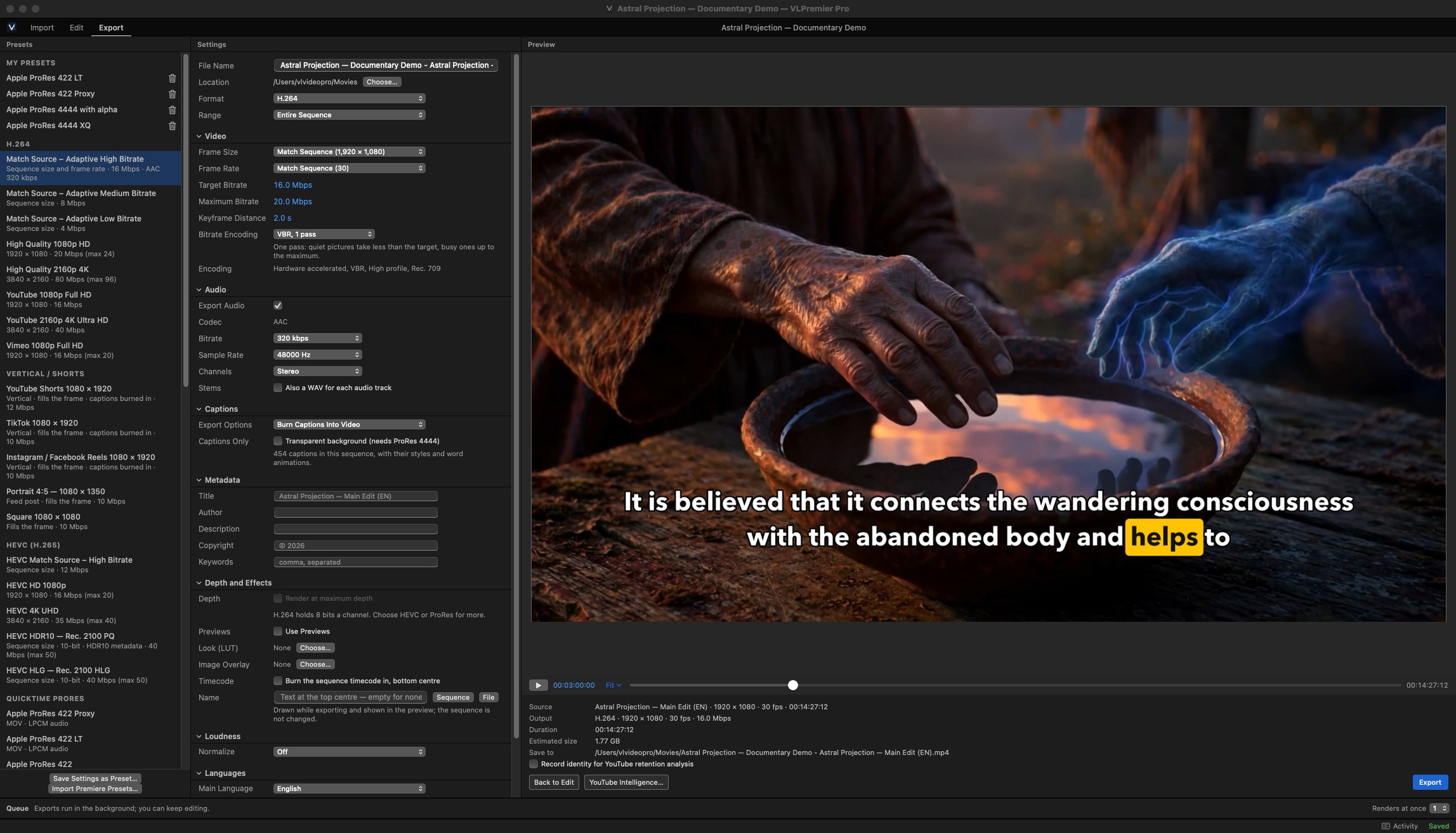
Export mode: platform presets, video, audio, caption, metadata and loudness settings, and a full-size preview.
Key functions
- H.264, HEVC, ProRes (Proxy to 4444), DNxHR (LB to 444) in MOV or MXF, GIF, image sequences, WAV, AAC and MP3
- Presets for YouTube, Shorts / TikTok / Reels (1080×1920), square, 4:5 and 4K. You can save your own presets or import Premiere Pro / Media Encoder presets
- HDR export (HDR10 PQ and HLG) for HEVC and ProRes
- Loudness targets with a true-peak ceiling, audio stems, chapters from markers, and file metadata
- Captions burned in, saved as a separate file, or embedded. Extra language audio tracks can go in the same file
- A background queue that runs up to four exports at once and resumes after you quit and reopen the app
Why it helps: Every delivery, from a 4K master to a set of Shorts, comes out of a single queue.
How to use it
- Set In and Out on the timeline, or export the whole sequence.
- Switch to Export mode and choose a preset.
- Set the captions, loudness and language options.
- Send it to the queue and keep editing.
Workspaces
What it is: Panel layouts for each stage of the job, with dockable and floating panels.
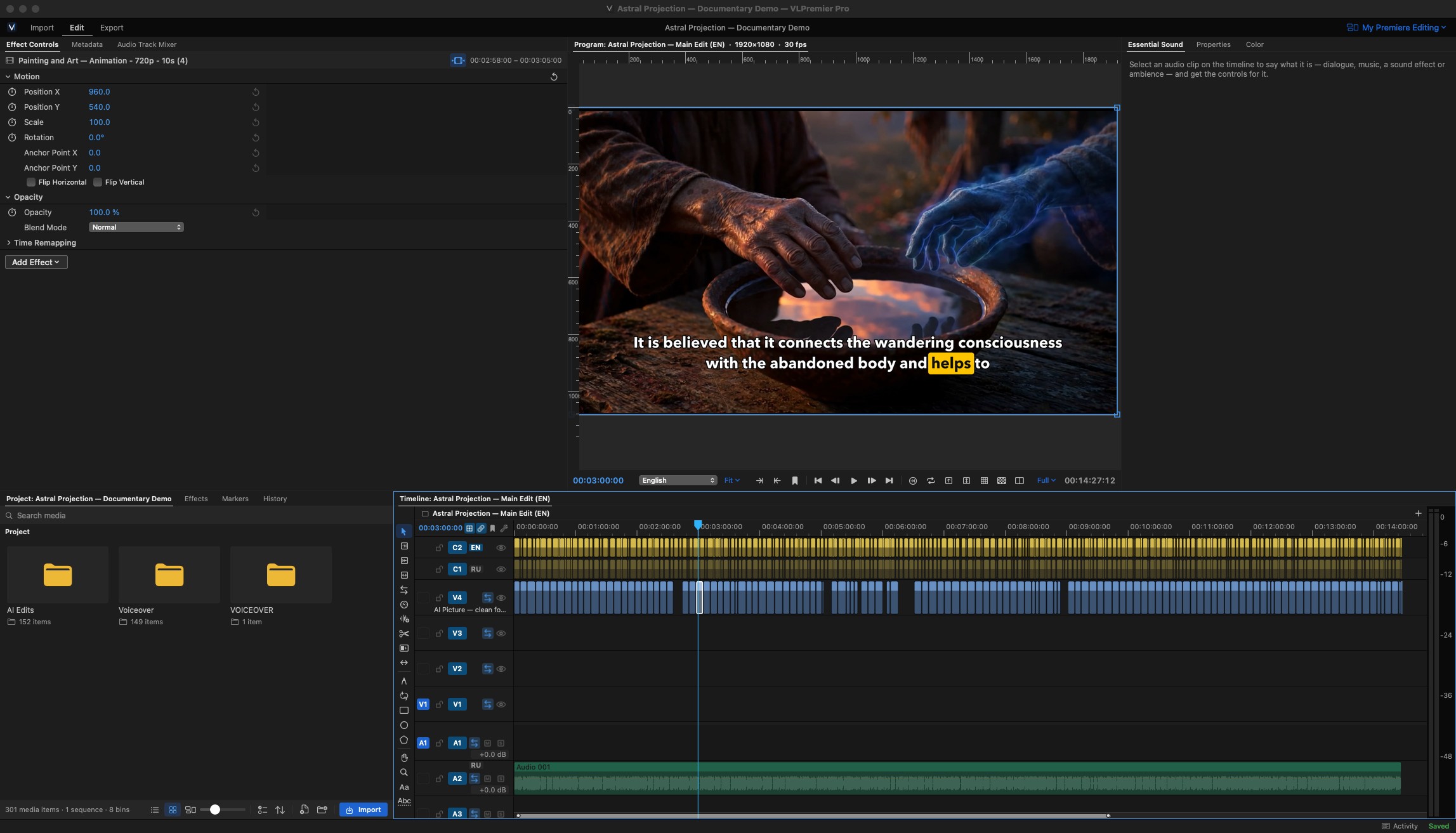
My Premiere Editing: a workspace arranged like a classic Premiere Pro 2026 Editing layout.
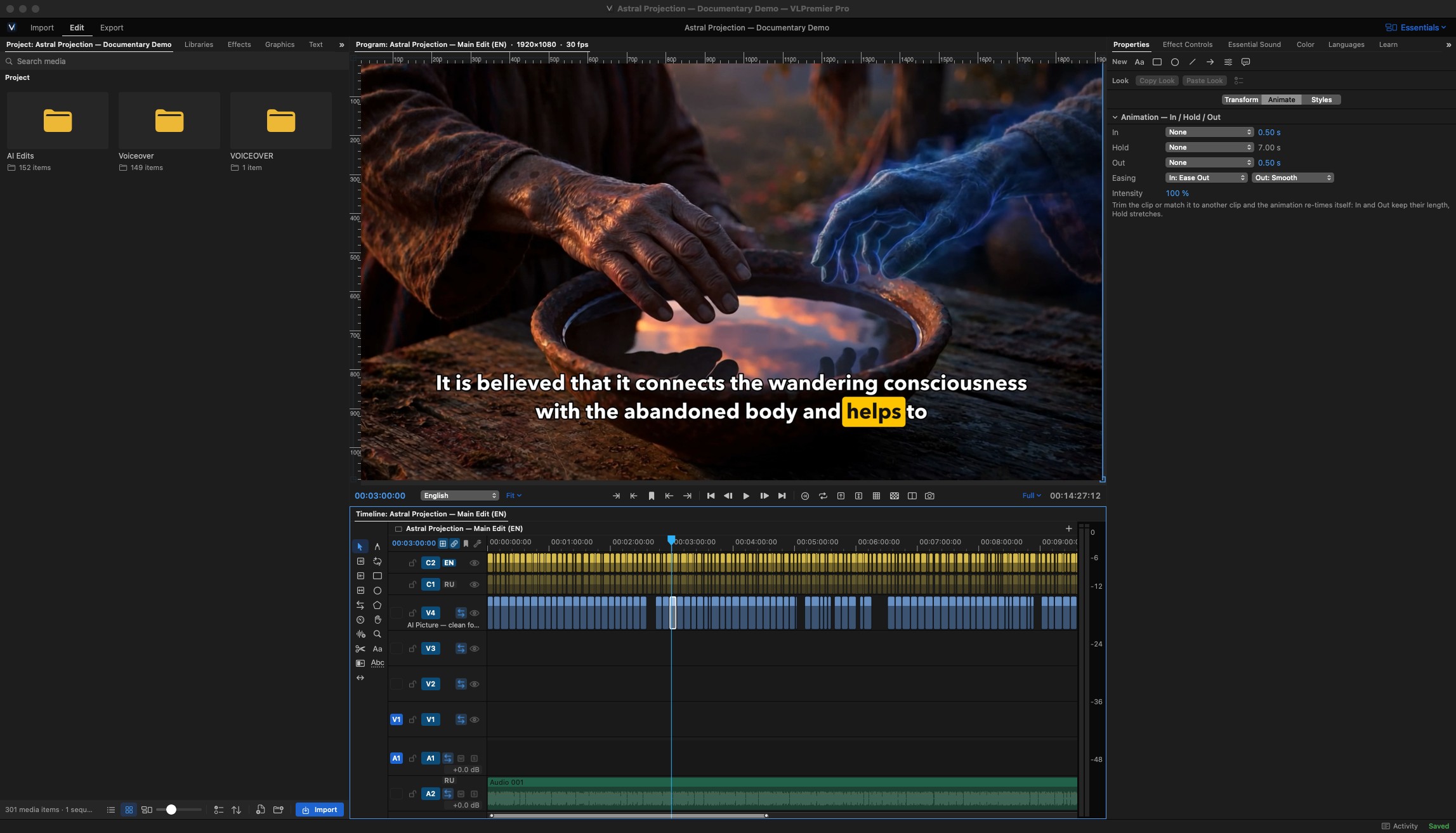
Essentials: the Project panel down the left, a large picture over the timeline, and Properties down the right.
Key functions
- Premiere Pro's ten workspaces: Editing, Effects, Color, Audio, Captions and Graphics, Learning, Essentials, Assembly, Review, and Vertical / Shorts
- Extra workspaces: Voiceover, All Panels, and My Premiere Editing, which follows a classic Premiere Pro 2026 Editing arrangement
- Drag panels to dock them in another group or at an edge, or undock them into floating windows
- Save as New, Save Changes, Reset to Saved and Delete. Your saved workspaces appear by name in Window › Workspaces
Why it helps: Each task gets the layout it needs, and Premiere Pro editors find panels where they expect them.
How to use it
- Open Window › Workspaces and choose a layout, for example My Premiere Editing.
- Rearrange panels by dragging their tabs.
- Save the result as a new workspace.
Extensions & add-ons
What it is: Add-ons that extend the app with your own panels, plug-ins, presets and looks.
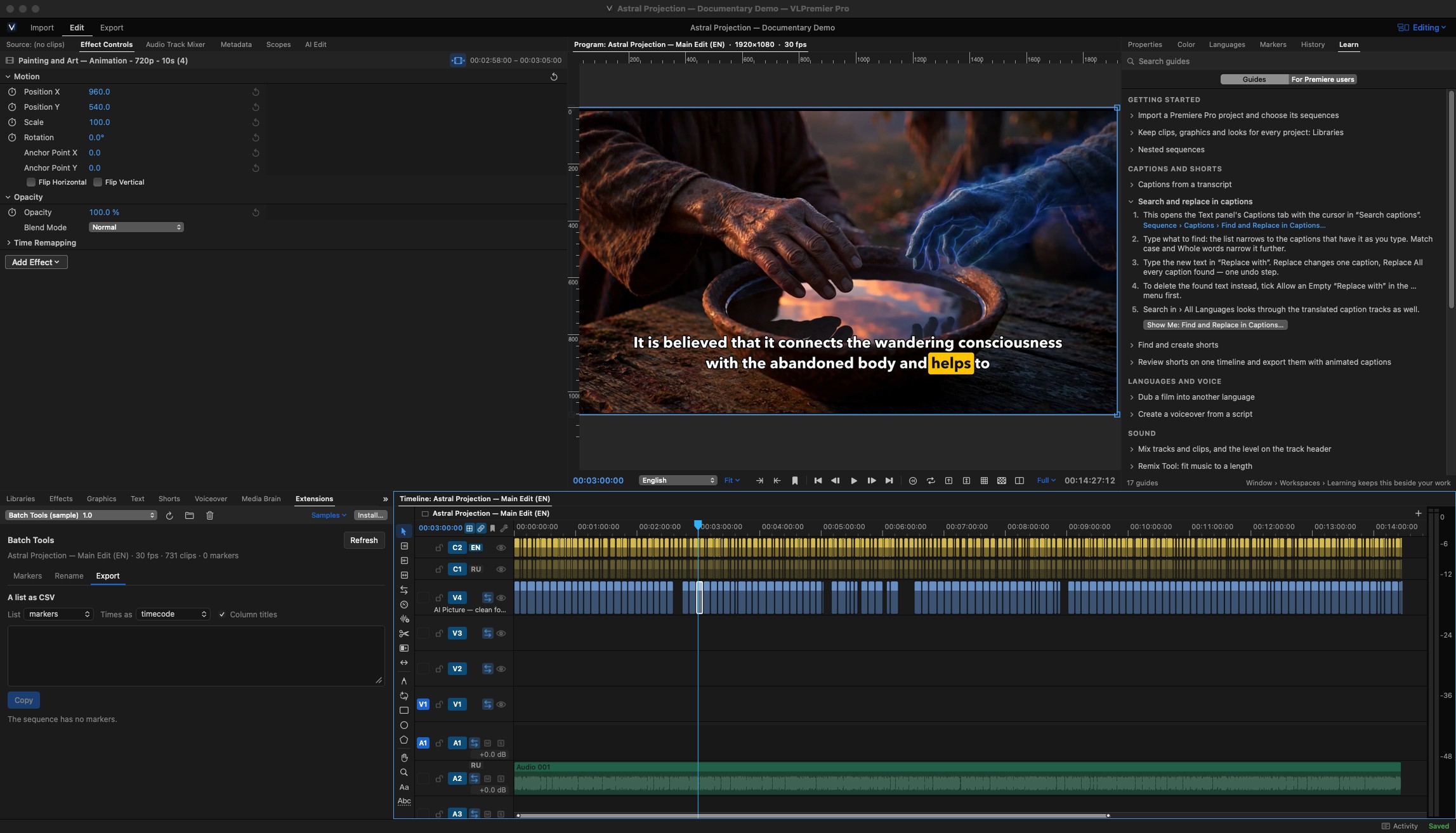
Window › Extensions with a sample Batch Tools panel at the lower left, and the Learn panel's step-by-step guides at the right.
Key functions
- Window › Extensions: install your own HTML and JavaScript panels. They run offline unless their manifest asks for network access
- Audio Units and VST3 effect plug-ins on audio tracks
- File › Add-ons › Install Add-on… for effect presets, looks, caption looks and plug-ins. You can also open the file with the app or drop it on its Dock icon
- Install My Premiere Pro Presets brings in your Premiere Pro effect presets
- Install Premiere's Lumetri Looks adds the readable looks from an installed Premiere Pro to the Looks menu
- A Local API for automation and AI assistants. It is off by default, protected by a token and reachable only from your Mac
Why it helps: You can bring the presets and plug-ins you rely on, and add tools of your own.
How to use it
- Choose File › Add-ons.
- Pick the presets, looks or add-on file to install.
- Find them in the Effects panel, the Looks menu or Window › Extensions.
Performance & reliability
What it is: An editor built to handle full-length documentaries with large media libraries.
Key functions
- Autosave, crash recovery and full undo history. Saving runs in the background without freezing the timeline
- Responsive scrolling, zooming and trimming on films with thousands of clips
- Fast switching between sequences. Other open sequences are prepared in the background
- Proxies for media larger than 2K, Playback Resolution (Full, 1/2, 1/4) and Render In to Out
- The export queue survives quitting the app. A failed export leaves no partial files behind
- Project clean-up tools: Clean Up Project Files…, Remove Unused and Project Manager
Why it helps: Long projects stay fast, and your work is protected.
How to use it
- Check that autosave is on in Settings › Editing.
- For heavy 4K or larger footage, select the clips in the Project panel and choose Create Proxies.
- Lower the Playback Resolution in the Program Monitor if playback stutters.
Works in many languages
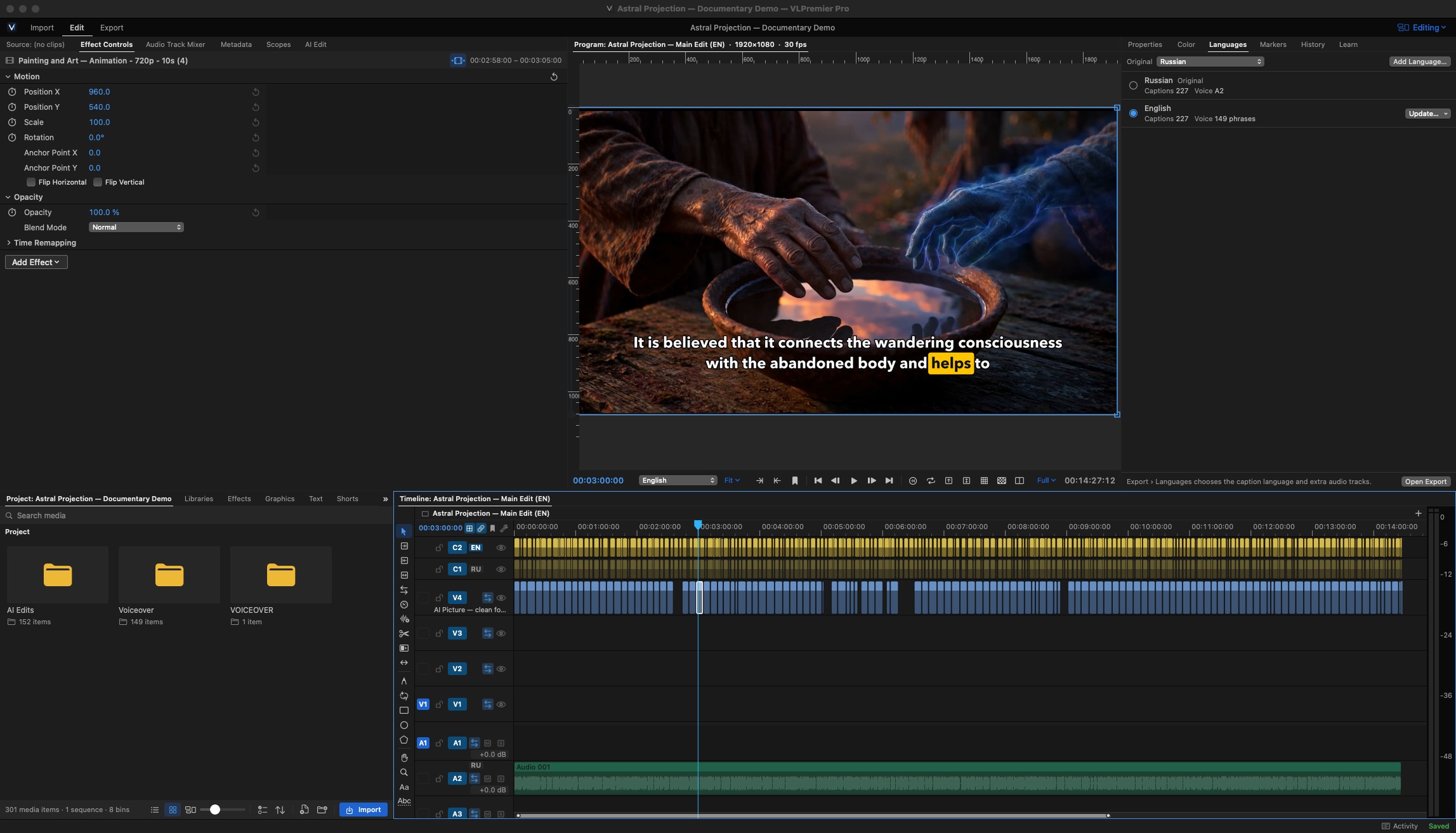
The Languages panel: the Russian original and an English version with 227 captions and its own voice track.
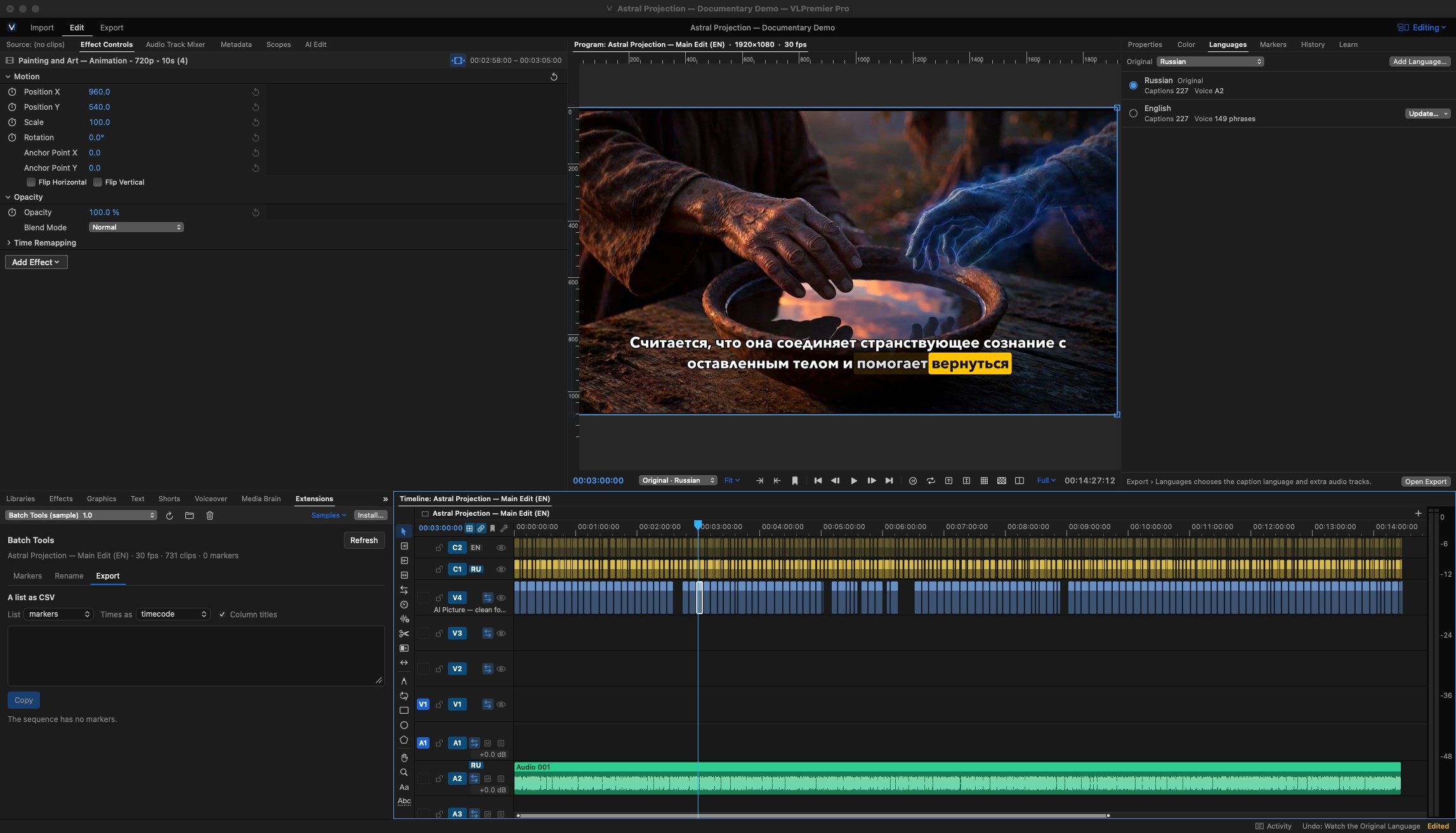
One click on Russian in the Languages panel: the same edit plays with the original Russian narration and captions. The VLPremier Pro interface is in English, and your content can be in other languages.
- Transcription: Detect language, or choose Russian, English, Ukrainian, Spanish, German, French, Italian, Portuguese, Polish, Turkish, Dutch, Arabic, Hebrew, Hindi, Japanese, Korean or Chinese.
- Voiceover and dubbing: the Voiceover Studio's voice engine speaks 23 languages: Arabic, Chinese, Danish, Dutch, English, Finnish, French, German, Greek, Hebrew, Hindi, Italian, Japanese, Korean, Malay, Norwegian, Polish, Portuguese, Russian, Spanish, Swahili, Swedish and Turkish.
- Caption translation: Apple's on-device translation, or an AI service you choose, for any language pair it offers.
Transcription detects the spoken language. Captions can be translated into other languages and spell-checked in each one. The Voiceover Studio narrates and dubs into other languages, for example from Russian to English, Spanish or German, timed phrase by phrase to the original. A single export can carry several caption files and language audio tracks. The font list can filter for Cyrillic fonts, and captions in right-to-left scripts such as Arabic and Hebrew are laid out from the right.
FAQ
Quick answers to the questions buyers ask most.
What are the system requirements?
macOS 14 or later on a Mac with Apple Silicon. The built-in AI model needs at least 16 GB of memory, and the larger model is used on Macs with 32 GB or more.
How does the licence work?
One PRO licence activates VLPremier Pro on one Mac. To move it, choose Settings › Licence › Move to another Mac, then activate on the new computer.
Can I work offline?
Yes. Editing, transcription, captions, voiceover and the built-in AI engine all run on your Mac. An internet connection is needed for activation and for the one-time download of the voice, speech and AI components. Online AI services are only used if you choose them.
Will my Premiere Pro projects open?
VLPremier Pro opens Premiere Pro .prproj and XML files with their sequences, bins, nests, markers, transitions, keyframes and titles. Lumetri grades arrive as starting values, and effects with no equivalent in the app are listed in the import report. After Effects compositions and After Effects-made MOGRTs render through an installed copy of After Effects.Is my footage sent to the cloud for AI?
No, not by default. AI Edit, the Assistant and Automatic Video use the built-in AI engine on your Mac. Subject detection and transcription also run on your Mac. Requests go to an online AI service only if you choose one and enter your own key.
What isn't supported?
Adobe's own plug-in formats (.aex,.plugin) and CEP / UXP panels run only inside Adobe applications. VLPremier Pro hosts Audio Units and VST3 plug-ins, and has its own extension system. FCPXML export does not include speed changes, titles, effects or transitions.
Do I need Premiere Pro or After Effects installed?
No. You only need them to render After Effects compositions or After Effects-made MOGRT templates, or to write a native .prproj. Premiere Pro XML export works without them.Which languages does it support?
The interface is in English. Transcription detects the spoken language or takes one of 17 you choose (Russian, English, Ukrainian, Spanish, German, French, Italian, Portuguese, Polish, Turkish, Dutch, Arabic, Hebrew, Hindi, Japanese, Korean, Chinese). Captions translate with Apple's on-device translation or an AI service, and are spell-checked in their own language. The Voiceover Studio narrates and dubs in 23 languages. Right-to-left captions (Arabic, Hebrew) are laid out from the right.
Can it correct my captions from the script?
Yes. Correct from Script takes your script, pasted or opened as .txt, .md, .rtf or .docx, and fixes misheard words in the captions, the transcript or an SRT file while keeping every timing. You review the list of fixes first, and one Undo reverses them. On a real 14-minute documentary it made 234 corrections in 173 captions in one pass.
Can I use LUTs and .cube files?
Yes. Install any .cube LUT and it appears in the Looks menu of the Color panel. Install Premiere's Lumetri Looks adds the readable looks from an installed Premiere Pro. Export .cube… turns a clip's grade into a LUT you can use in other apps, and a LUT can also be applied to a whole export.
Which files can I bring in?
Video in MOV, MP4 and M4V (H.264, HEVC, ProRes), including iPhone HDR (HLG), HDR10 and Apple Log footage; audio in WAV, AIFF, MP3, AAC and FLAC; images in PNG, JPEG, TIFF, HEIC, WebP, GIF and SVG. Layered Photoshop .psd files open one layer per track. It also takes Premiere Pro .prproj and XML projects, After Effects .aep compositions, .mogrt templates, Premiere effect presets (.prfpset), Premiere and Media Encoder export presets (.epr), Premiere keyboard shortcuts (.kys), .cube LUTs, SRT and VTT captions, and EDL files.
Which plug-ins can I use?
Audio Units and VST3 effect plug-ins on clips and tracks, each with its own editor window and with latency compensation for VST3. Your own HTML and JavaScript panels install from Window › Extensions.
What can I export?
H.264, HEVC, ProRes (Proxy to 4444) and DNxHR (LB to 444) in MOV or MXF, GIF, image sequences, and WAV, AAC or MP3 audio, with HDR10 and HLG for HEVC and ProRes. Captions can be burned in, saved as SRT or VTT files, or embedded, and extra language audio tracks can go in the same file. Timelines go out as Premiere Pro XML, AAF, EDL or FCPXML.
Can I edit by editing the text?
Yes. Transcribe the sequence, then delete words or sentences in Text › Transcript to cut them from the video. In the Source Monitor you can click words to set In and Out on a clip before you insert it.
Can it remove silences and filler words for me?
Yes. AI Edit › Quick Edits removes silences while keeping natural breathing room around words, and finds filler words, retakes and repeated takes. Every change is listed for review first, and the whole edit is one Undo.
Does it suit Shorts-only creators?
Yes. The Vertical / Shorts workspace, Find Shorts, Auto Reframe, animated captions, safe-zone guides and batch export cover the whole Shorts workflow.
Adobe, Premiere Pro, After Effects and Photoshop are trademarks of Adobe Inc. VLPremier Pro is not affiliated with Adobe. Final Cut Pro and macOS are trademarks of Apple Inc. DaVinci Resolve is a trademark of Blackmagic Design Pty. Ltd. VLPremier Pro is not affiliated with Apple or Blackmagic Design.